
When you're exploring a region, start by checking its name on your in-game world map. For an AION 2 interactive map, use Game8 or The Hidden Gaming Lair (TH.GL), select the matching region, and filter for the collectibles, travel points, or activities you want. In game, press M and select Exploration at the top to check your completion progress.
Which region map should you select?
A marker only helps if you're looking at the right region. Match the region name before planning a route; a collectible count from another map won't tell you what's left in yours.
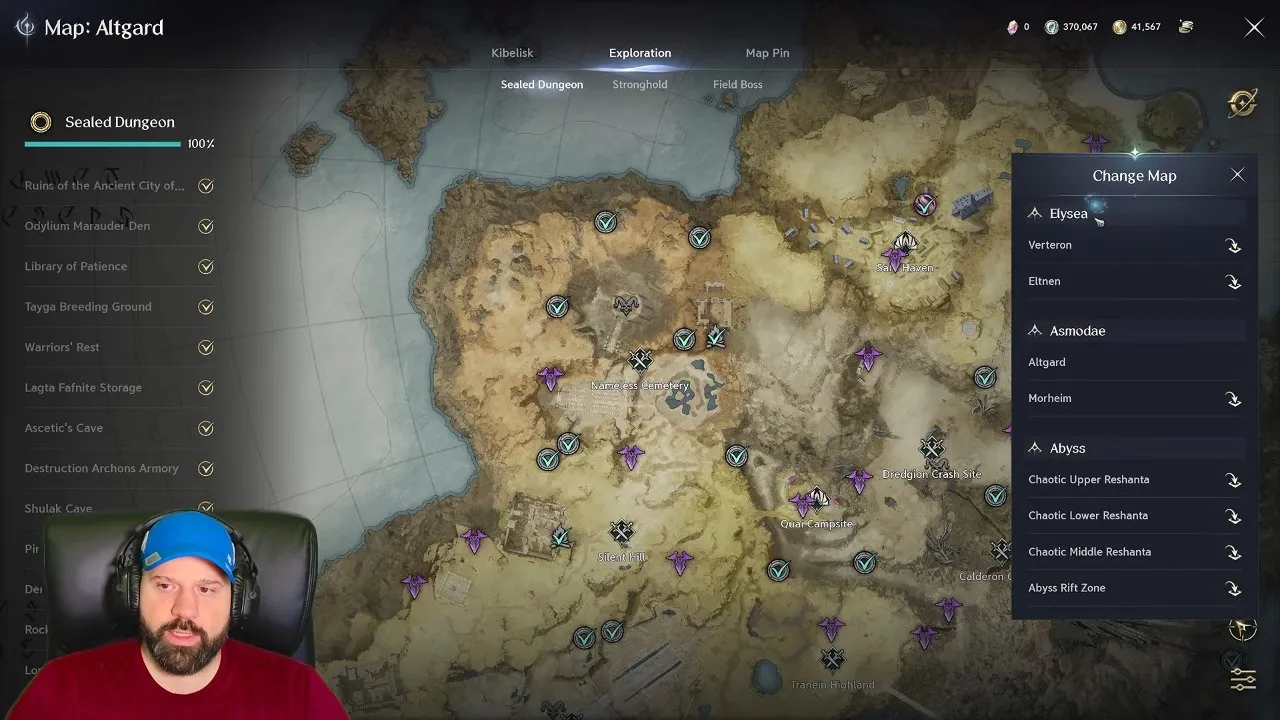
| Area | Region maps listed by Game8 |
|---|---|
| Elysea | Poeta, Verteron |
| Asmodae | Ishalgen, Altgard |
| Abyss | Chaotic Lower Reshanta |
TH.GL also lists Eltnen and Morheim, and its Empyrean Trace tracker includes Chaotic Middle Reshanta. On its Verteron map, labels such as Dawn Legion Base, Verteron Fortress Ruins, Altamia Canyon, and Crimson Isle help you narrow the search to a named area.
Browser map: recommended for planning a collection route
Use the browser map when you want to choose a region, isolate one marker type, and record what you've found. Game8 offers Show All, Hide All, Hide Checked Pins, and Display Title. TH.GL lets you right-click an Empyrean Trace icon to mark it discovered or undiscovered; check that the marker's discovery state changes before moving on.
Companion App: useful for tracking around your character
TH.GL's Companion App supports player tracking and auto-discovery. Version 21.1.0 or newer offers Live and Combined modes for nearby gathering nodes and monsters on the Elyos and Asmodian overworld maps. The Auto-discover collected items setting marks your current character's collected Empyrean Traces as discovered.
Live mode stays off in the Abyss, dungeons, and other instances. Use the region map and in-game Exploration view there instead of expecting nearby live markers to appear.
How do you show the locations you need?
A crowded map can look like one giant checklist. Read it by marker category first, then by location. Hiding unrelated markers makes your next stop easier to pick.
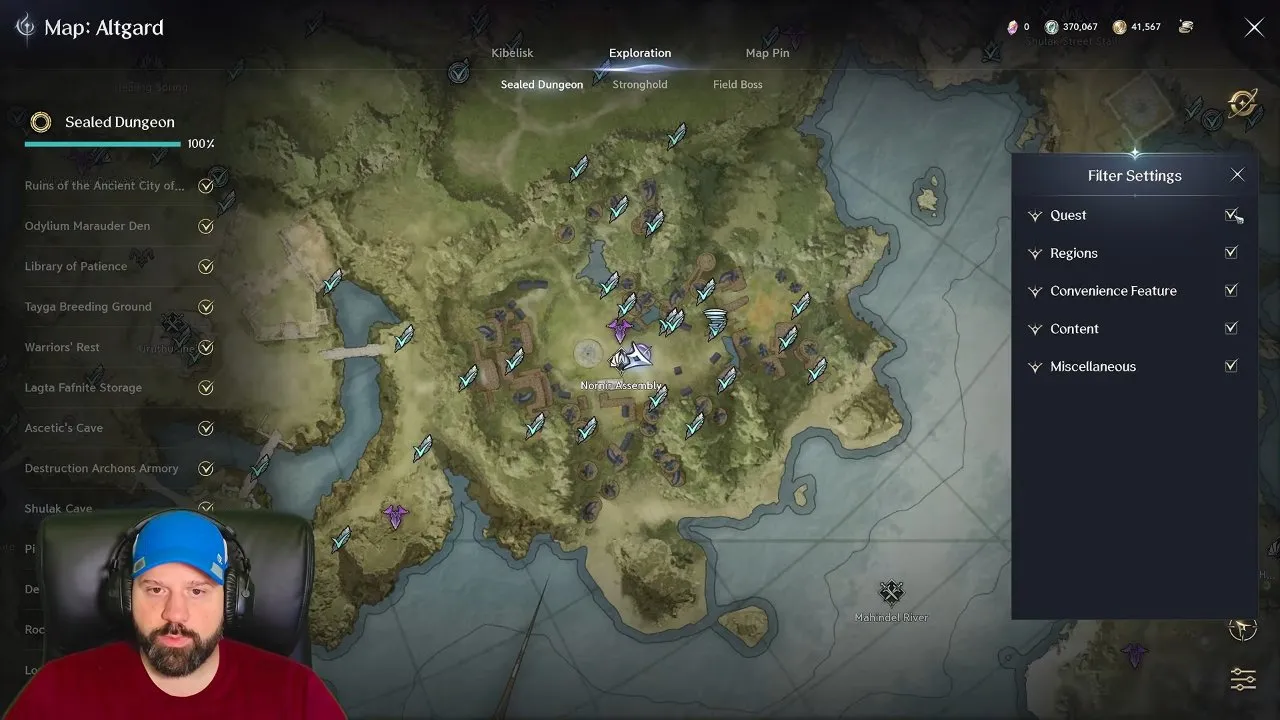
| Looking for | Filter or marker to use |
|---|---|
| Fast travel | Kibelisk |
| Collectibles | Empyrean Trace, Hidden Cube, Monolith |
| Combat activities | Boss, Sealed Dungeon, Stronghold |
| Resources | Ruby; TH.GL also has Gathering filters |
| Places and quest starts | Village, Hunting Ground; TH.GL has Locations and Quests |
- Choose one target category. On Game8, use Hide All, then enable the category you need. Confirm that its pins appear before plotting your route.
- Check TH.GL's filter groups if activities seem missing. Returning visitors may need to enable Quests and Exploration once. Exploration contains Sealed Dungeons, Strongholds, and Daeva Hunter sites; Quests shows Episode and Regional quest givers. Confirm that those markers are visible after enabling the group.
- Track pickups as you go. Mark collected traces discovered on TH.GL, or use Game8's checked-pin controls. This keeps a completed stop from becoming your next destination again.
For a cube hunt, continue with AION 2 hidden cube once you've selected the Hidden Cube filter. If you're looking for resource pins, use AION 2 ruby location for the focused Ruby page.
Treat counts as belonging to a particular map and tracker. Game8 displays 558 Empyrean Trace pins in its captured view; TH.GL's Verteron tracker displays 559, while its six-map guide lists 1,698. Those numbers aren't interchangeable completion targets.
How do you find a feather when the pin isn't enough?
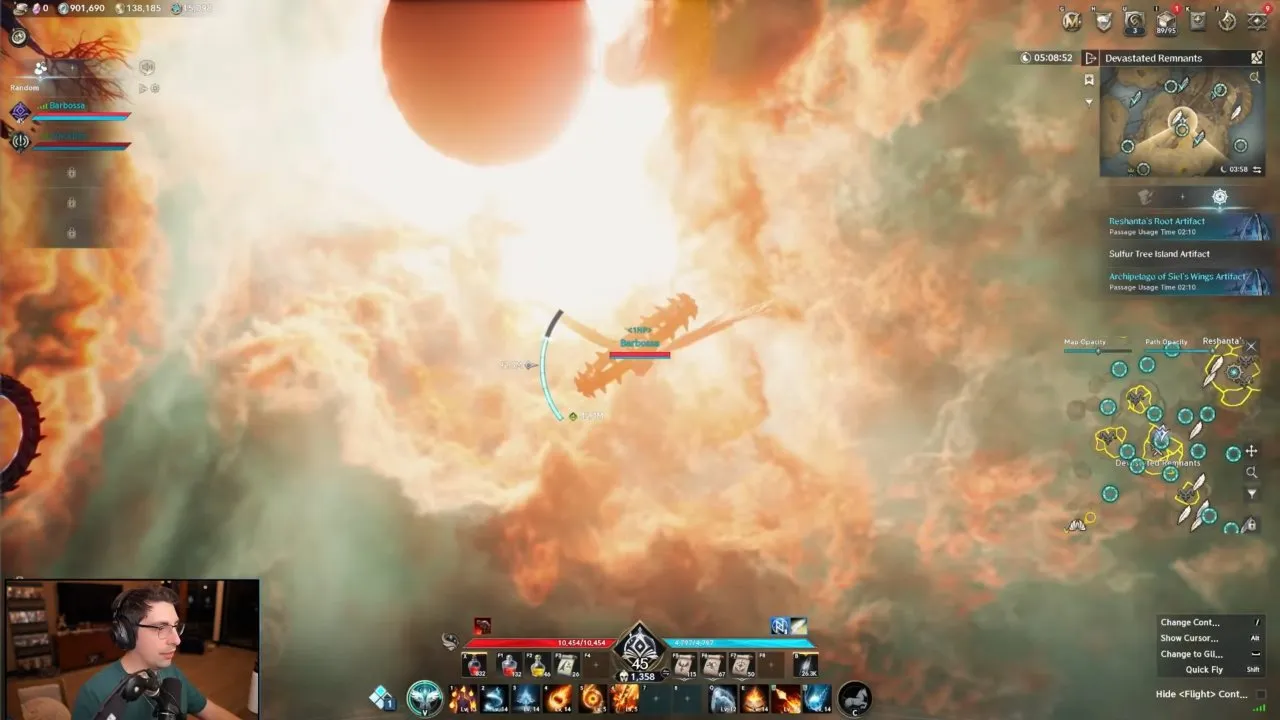
A feather pin can look close on the flat map while still leaving you searching above or below your current position. Hover your mouse over the feather on the minimap to show its distance tooltip. That's your first check that you're reading the feather itself.
Use that distance while changing position or elevation to judge whether you're getting closer. The tooltip gives distance; don't assume the pin alone tells you which height to search. In one player's session, trying to ping a feather kept selecting a nearby flight circle instead. If that happens to you, hover for the tooltip before trusting the ping.
For the broader completion check, press M, then open Exploration at the top. Look for the completion percentage there. A player who was struggling to find remaining objectives checked this tab and saw 46% complete, a useful reminder to check the actual progress display before assuming only a few stops remain.
Where should you go after checking your route?
You now have a region, a filtered set of destinations, and a way to check both tracked pickups and in-game exploration progress. Collect nearby feathers while traveling between objectives rather than leaving every pickup for a separate lap.
If your next destination is the enemy faction's world, check the AION 2 rift timer before planning that trip. If your route is about gathering rather than exploration completion, continue to AION 2 materials and choose the resource you need.