
You shape your character in the customization menu before finishing character creation. For a good-looking result, start from a preset close to your goal, refine the face before adding hair and makeup, then balance the body; AION 2 character creation gives you over 200 customization options. To use a community preset, download it through the Style Shop, then open Manage Appearance, select it in Download Storage, and press Load.
Should You Start From a Built-In Preset or a Shared Style?
Built-In Preset: Recommended for Making Your Own Look
Choose your gender presentation and a preset that already has the broad look you want. A close starting point means less work on the chin, cheeks, and jawline later. Pick the voice and skin color from the controls on the left, then check that the selected foundation looks right before diving into facial details.
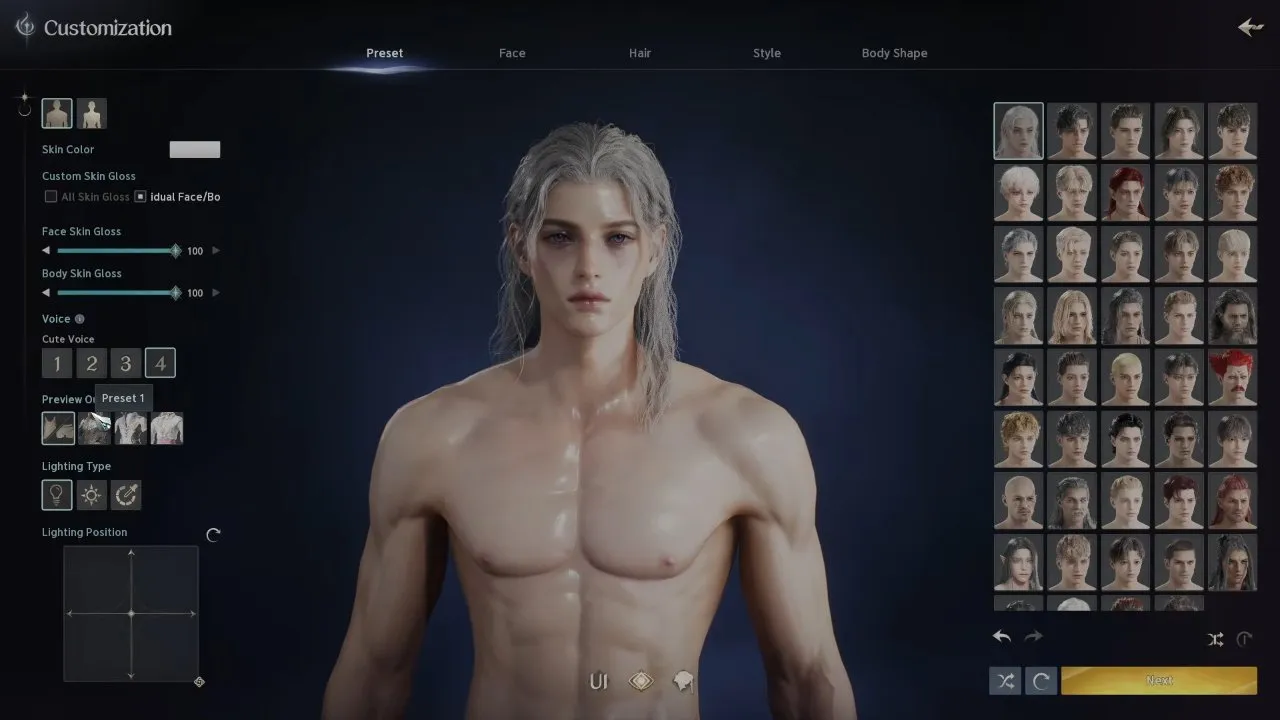
This is the steadier route if you enjoy tweaking features. You are editing an existing foundation rather than trying to solve every proportion at once. Keep the voice choice in mind too: its range runs from fierce to cute, so choose one that fits the character you are building.
Shared Style: Recommended When You Already Like a Community Design
Use the Style Shop when another player's design is close to your goal. It supports browsing, downloading, and loading community appearances through the customization menu. Class and Style filters help narrow the selection, and favorites let you keep a shortlist instead of committing to the first face you see.
If you are still deciding which class to make, consult AION 2 classes before using the Class filter. If class strength is part of that decision, the AION 2 class tier list is the relevant next read. Treat the appearance search as a way to find a look you like, rather than a reason to rush that separate choice.
How Do You Refine the Face Without Getting Lost in Sliders?
The face controls can look like a wall of tiny adjustments. Read them as layers: overall shape first, feature placement next, then colors and decorative details. That order makes it easier to judge which change actually improves the result.
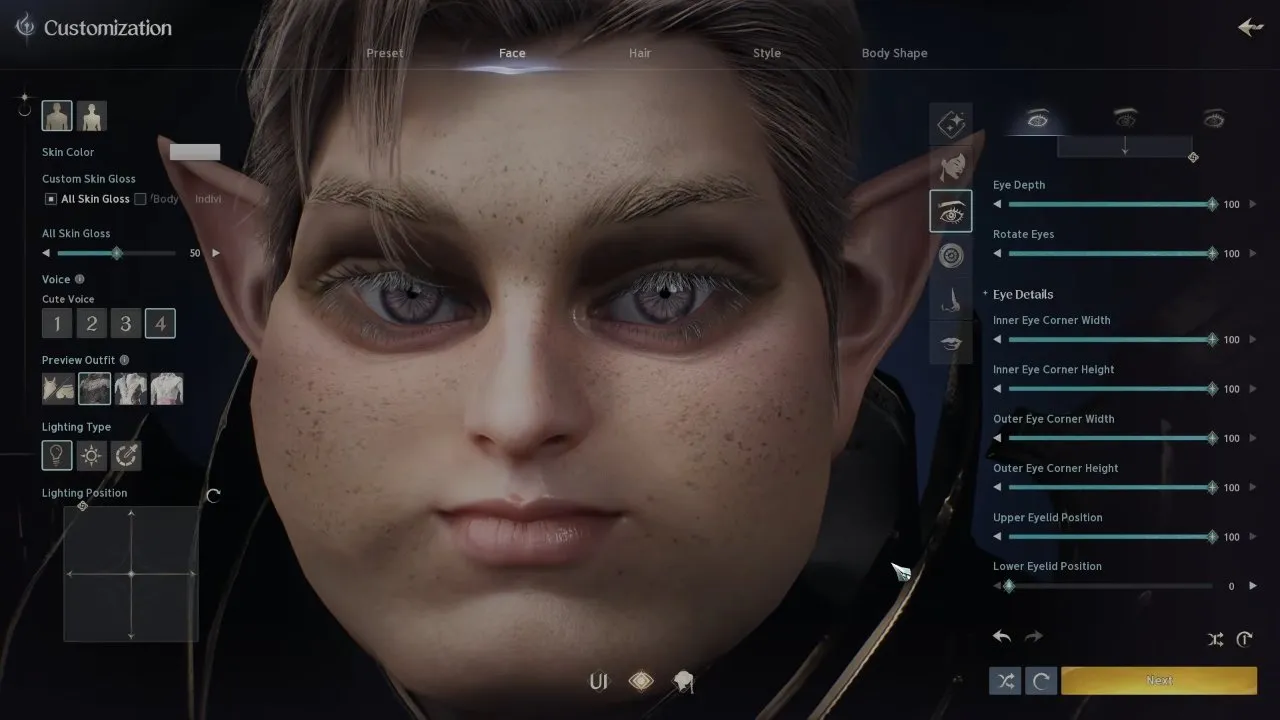
- Set the head shape. Choose a face shape preset, then use Face Type to adjust the shape, chin, jawline, cheeks, forehead, and ears. Check the overall silhouette before moving on. This is the biggest part of the facial editing work, so give it more attention than a finishing detail such as lipstick.
- Place the eyes. Adjust rotation, corner height, width, and eyelid position. Check the placement and outline before changing eye colors; a color choice will not solve a shape you dislike.
- Style the iris and pupil separately. The next eye tab offers glow, shapes, and colors. It also supports different colors for each eye. Check both eyes after editing, especially if you want a matching pair rather than an asymmetric design.
- Adjust the nose. Use its size, length, position, and nostril controls. Check its proportions against the eyes and jaw you have already settled on.
- Finish the mouth shape. Set upper and lower lip width and thickness, then overall mouth position. Check the whole face again before adding makeup. Otherwise, you can spend time polishing a feature you still need to reshape.
There is no single slider recipe for a good-looking face. A practical approach is to keep the preset's strongest features and change the parts that clash with your intended look. Make one group of adjustments at a time so you can tell why the face changed.
What Should You Change After the Face?
Hair: Choose the Shape Before the Finish
Try the available hairstyles with your finished facial proportions. Hairstyles are not restricted by gender, so explore the whole selection. Once the shape works, move to the next tab for hair color and gloss.
Check the hairstyle on the face you actually made before fine-tuning its shine. A color you love does not necessarily make a different haircut fit your intended look.
Makeup and Markings: Use Them as Finishing Touches
The Style controls include contour, eyeliner, lipstick, beauty spots, face art, scars, tattoos, and beards. Add these after you are happy with the underlying face, then check whether the result still matches your goal.
If the face feels wrong, return to shape or feature placement before piling on more decoration. This keeps your next edit focused on the part you want to change.
Body: Balance It Against the Head
Start with a body preset, then adjust height and width. You can also edit head and neck size and thickness, plus the muscles and widths of the arms, waist, and legs.
Check the full character after those changes. A face that works on its own still needs to suit the body proportions you selected. Settle that balance before treating the design as finished.
How Do You Download and Load AION 2 Character Presets?
The Style Shop may look like a gallery, but downloading a design and applying it are separate steps. The download adds the style to your account; Load transfers the selected appearance onto your character in the customization menu.
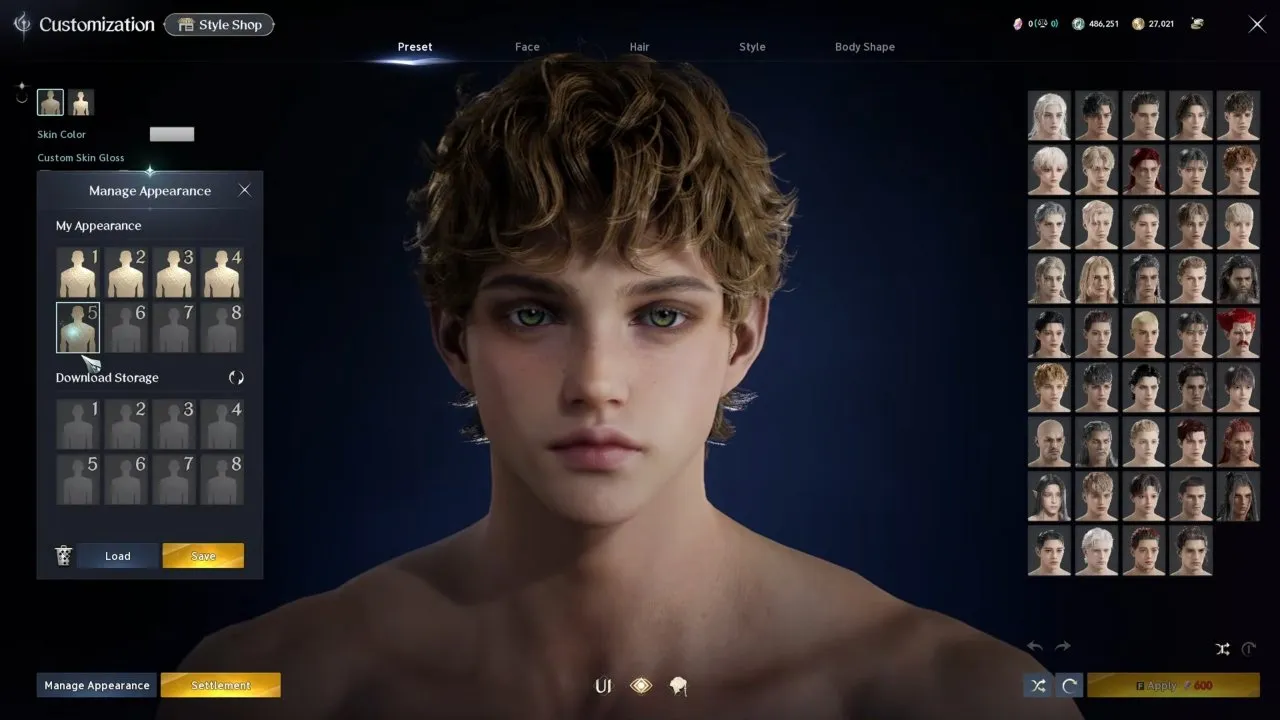
Open the Style Shop and choose a design
Use the Style Shop button at the top left of the customization menu. Browse with the Class and Style filters, or save favorites while comparing designs. Before continuing, check that you are viewing the style you intend to use.
Download the style to your account
Scroll to Download Style and use it while logged in to your PlayNC account. Return to the game and open Manage Appearance at the bottom left of the customization screen. Your check is whether the downloaded style appears in Download Storage.
Select the stored appearance and load it
Select the downloaded style and press Load. Check that the character's appearance changes to the selected design. Review the appearance application options before spending a ticket or currency.
The October 4, 2026 application workflow lists a Character Appearance ticket or 600 Quna to use a style. Check the amount and item shown in your own application screen before paying.
Can You Save and Share Your Own Preset?
Yes, the Style Shop supports uploading your customized appearance. The October 4, 2026 sharing workflow lists Lv. 10 as the minimum for taking the export snapshot; check the current sharing requirements in your client before planning around that level.
- Capture the customization data. Press Escape, select the Camera icon, and tick Customization Info at the bottom right before taking the snapshot. Check that the box is selected. The image needs that information to work as an appearance export.
- Find the snapshot on Windows. Open Run, enter
%appdata%, and locate the recorded folder sequence:Device Name > Local > AION2 > Saved_Steam > Screenshots > Windows. Check that you have found the snapshot you just took. This path is for the Windows Steam version. - Register the style. Open Style Shop from customization, choose Register My Style, and upload the snapshot. Add a name and an optional description, then register it. Check that the registered style and its displayed image represent the same appearance.
That last check matters: the Style Shop policy prohibits registering appearance data that differs from the image in the post. Use a snapshot that accurately shows the design you are sharing.
What Happens If You Want to Change Your Look Later?
Appearance changes after creation use a Customization Voucher or a seven-day Appearance Change Voucher in the October 6, 2026 customization details. Review the item your current menu requires before confirming a redesign. Finishing your face and body checks during creation is the safer choice if you want to avoid needing another appearance change immediately.
You now have either a customized preset or a loaded community style, with the face, hair, markings, and body checked together. Once you are happy with that look, move on to your class guide: use the AION 2 gladiator build if you chose Gladiator, or the AION 2 cleric build if you chose Cleric.