
On PC, you can check your damage inside the game without installing anything. The built-in AION 2 DPS meter is Combat Analysis: press Ctrl + X, choose an analysis mode, and record your fight to see your own DPS and skill damage. Use this built-in feature for personal testing; third-party packet-capture meters carry account risk, and community reassurance does not grant permission to use them.
How Do You Open the DPS Meter?
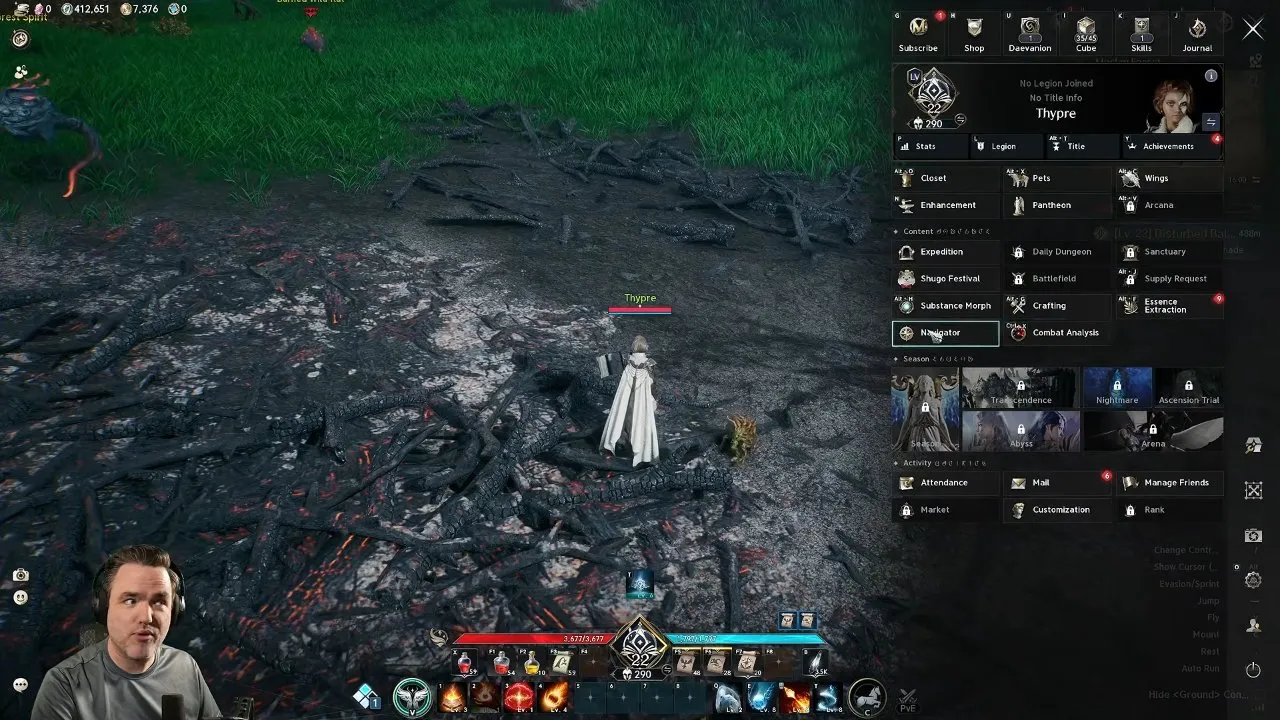
- Press Ctrl + X, or press Escape and select Combat Analysis.
- Check that the Combat Analysis window appears with analysis-mode controls.
- Choose the mode for the fight before attacking. For repeatable rotation tests, use a Training Scarecrow so you can compare results against the same target.
Combat Analysis measures your character only. It does not show a party-wide DPS ranking, so you cannot use this window to compare each party member's contribution.
Which Analysis Mode Should You Choose?
Auto-Analysis: Recommended for Training Scarecrow Tests
Choose Auto-Analysis when attacking a Training Scarecrow or a supported boss. Recording starts automatically when you attack a supported target. Confirm that combat data begins appearing after your attack; opening the window alone does not mean every fight is being recorded.
Single-Target: Recommended for Boss Damage With Adds
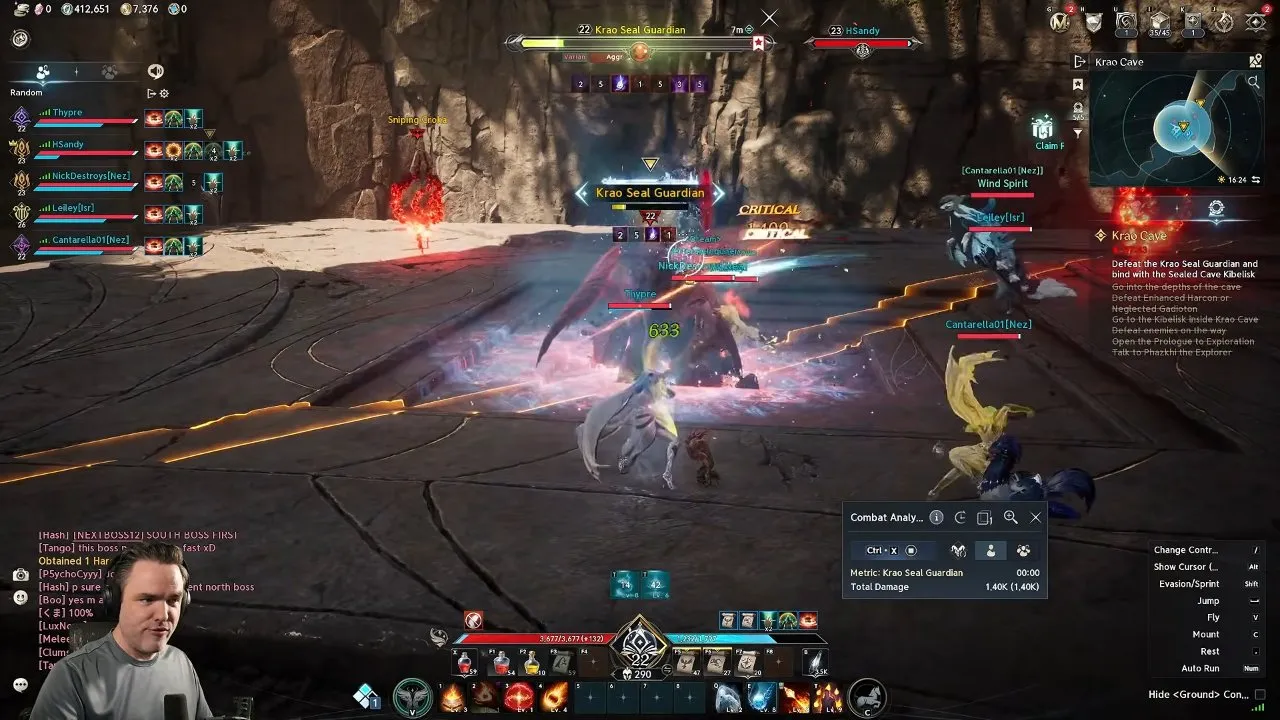
Choose Single-Target, select the enemy, then press Start and attack. This focuses the analysis on that enemy. Confirm that the selected target is the one you want to measure.
If a boss has additional enemies, select the boss to measure your boss damage. An all-target total includes damage to those extra enemies, which answers a different question from how much damage you dealt to the boss.
Multi-Target: Use All Targets for Overall Damage
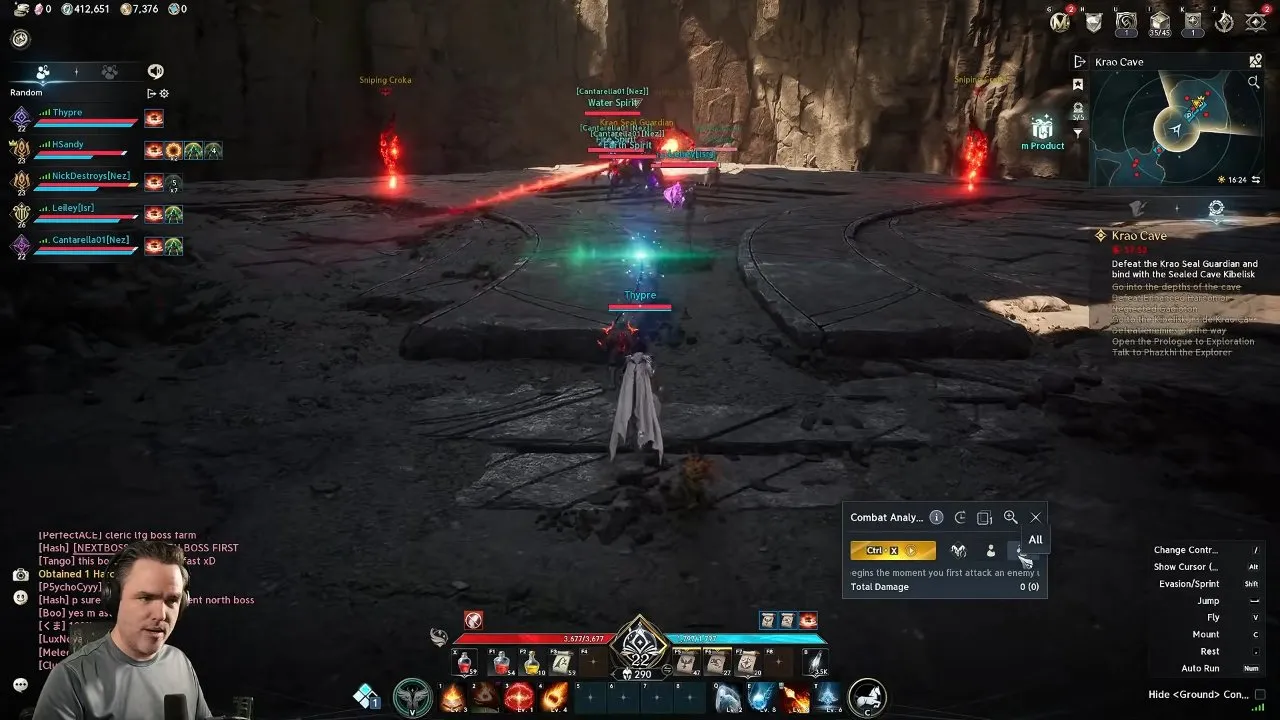
Choose Multi-Target, or the all targets option, to record damage across several enemies. Press Start before attacking. Confirm that the all-target option is selected rather than one specific enemy, then check that damage figures appear during combat.
Keep the target mode consistent when comparing tests. Switching from boss-only damage to all targets changes what the result includes.
How Do You Start and Save a Recording?
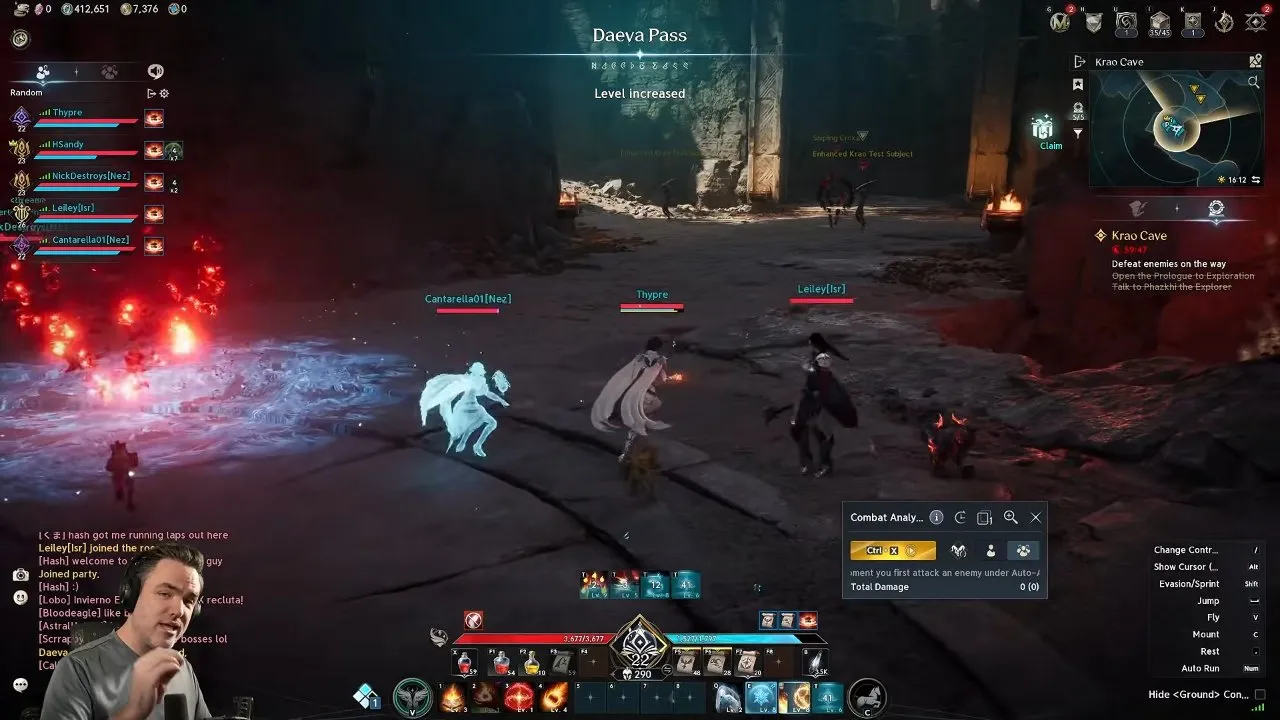
- In a manual mode, press Start, shown as the record button, before your test begins.
- Attack and check that damage figures appear. If entering combat leaves the window idle, check your mode and start recording manually.
- Press Stop when the test ends. This ends the analysis and saves its result for later review.
Auto-Analysis starts on supported targets; manual modes need Start. In one player's dungeon demonstration, entering battle did not start recording until the record button was pressed. Check the figures instead of assuming the whole run was captured.
Previous analyses are stored, but reaching the record limit automatically deletes the oldest result. Review the tests you want to compare before they are replaced.
How Do You Read Your DPS and Skill Breakdown?
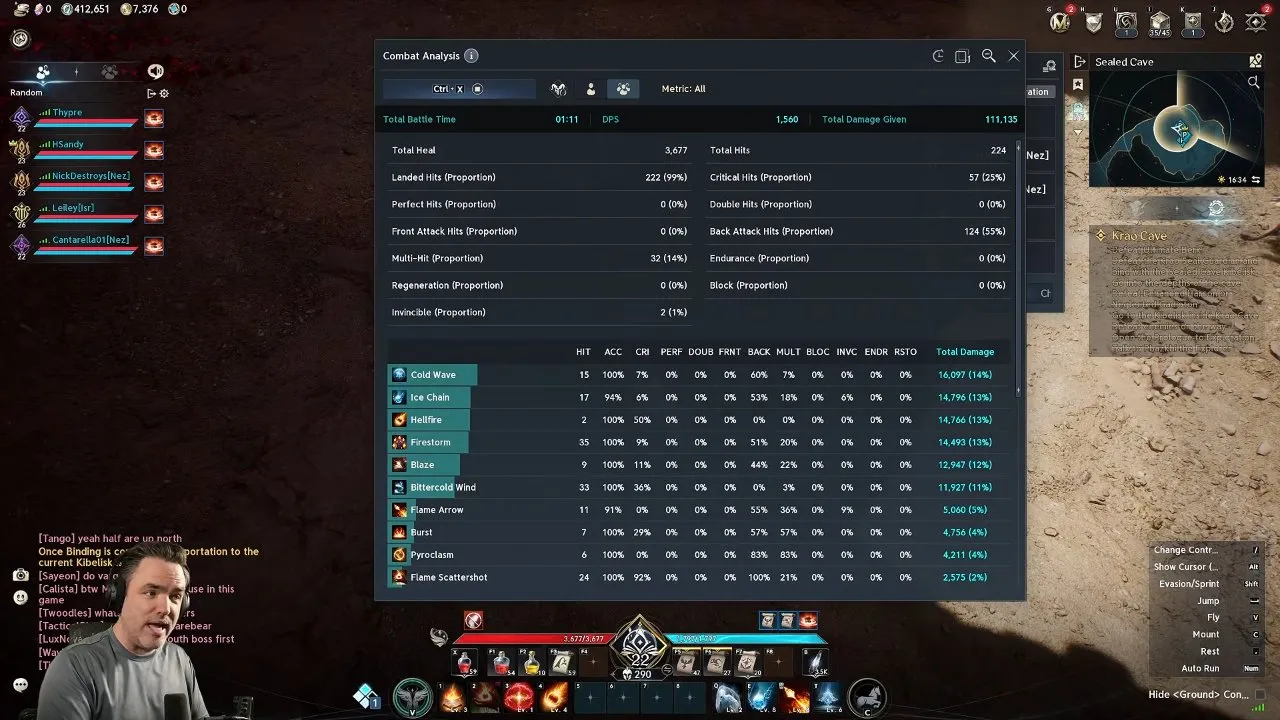
Click the magnifying glass at the top-right to enter Detailed Mode. Confirm that the overview shows combat totals and a list of individual skills.
The window first looks like a single damage score. Read it as a record of a particular fight: DPS is average damage per second during that analysis, while Total Damage is everything you dealt within its target selection.
| Result | What to check |
|---|---|
| Battle Time | How long the analysis lasted |
| DPS and Total Damage | Average damage rate and total damage dealt |
| Per-Skill Damage | Which abilities contributed the most damage |
| Total Heal | Healing performed during the analysis |
| Critical Hits | Critical-hit count and proportion of total hits |
| Damage Received | Damage and hits taken during the analysis |
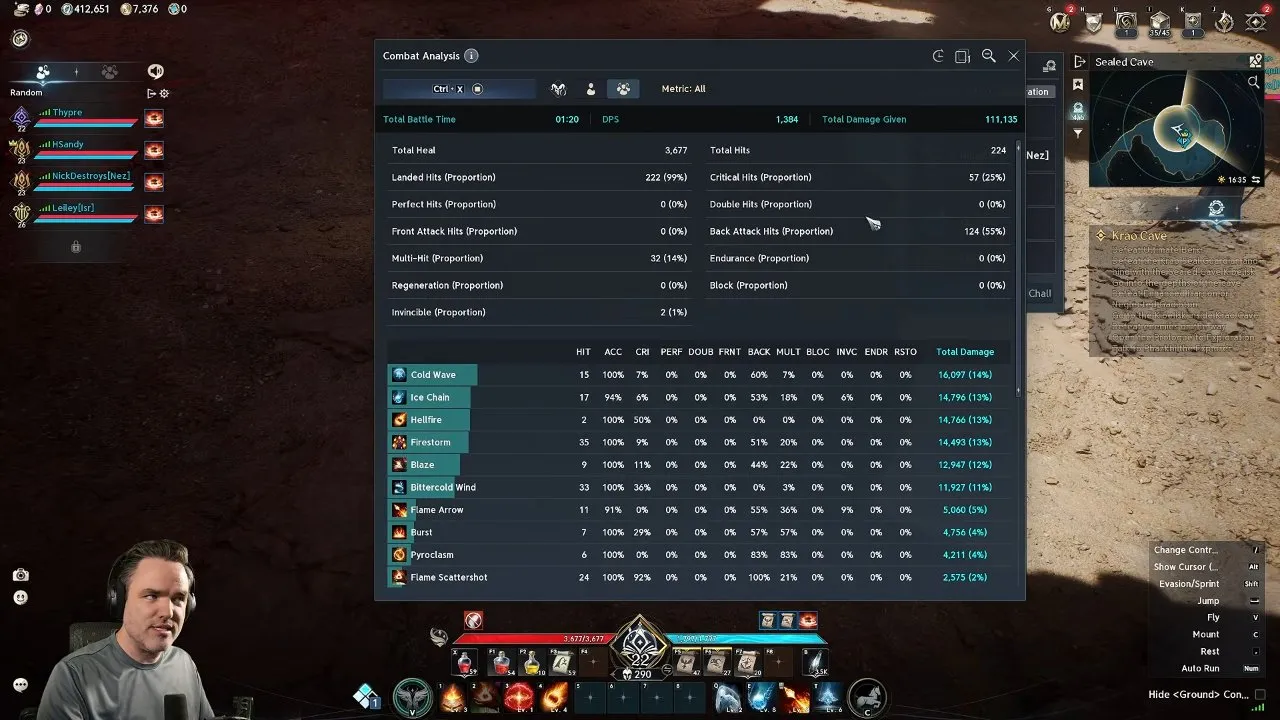
Select a skill entry to inspect its hits, accuracy, critical-hit rate, and damage contribution. Confirm that you are viewing that skill's statistics. The analysis also records properties such as back attacks, double hits, perfect hits, and blocks, so you can look beyond the headline DPS number.
For rotation testing, choose the setup you want to try from the AION 2 Gladiator build or AION 2 Sorcerer build, then compare its skill breakdown against the same target.
Is a Third-Party DPS Meter Allowed?
Built-In Combat Analysis: Recommended for Personal DPS Checks
Combat Analysis is part of the game and requires no extra download. It gives you personal damage, healing, and skill statistics, making it the straightforward choice when your goal is to test your own build.
Third-Party Meters: Extra Features With Account Risk
Third-party tools such as A2Tools capture game network packets and offer per-player damage breakdowns and overlays. Those extra features do not make them game-approved tools.
NC's terms restrict access through methods outside its published interfaces unless separately authorized, and prohibit bypassing security measures. NC can suspend or terminate accounts for terms violations. Treat a packet-capture meter as an account-risk decision rather than assuming that reading traffic makes it permitted.
Some players describe third-party meters as a gray area and suggest keeping their use private. Private use and reports of people avoiding bans are not permission or a guarantee against account action. Use Combat Analysis if you only need to check your own DPS.
You now have a saved personal damage test and a skill breakdown to compare after changes. If your next test is about equipment, go to AION 2 gear; if you are changing cards, use the AION 2 Arcana guide, then repeat the analysis with the same target mode.