Match Xsolla's verification currency to the store currency. AION 2 error code 1000 can appear during card verification when you make a purchase through Xsolla. Check the currency before submitting the requested verification code or authorization amount, because incorrect amount entries can cancel the payment.
How Do You Fix AION 2 Error Code 1000 at Checkout?
Set the currency on Xsolla's additional authentication page to the currency shown for your AION 2 store payment, then complete card verification. The currency should update automatically, but you may need to change it manually when the two do not match.
- Check the payment currency displayed in the AION 2 store before completing the purchase.
- On the Xsolla verification page, find the currency dropdown beside the amount entry.
- Compare that selection with the store's payment currency. If the store charges in USD, select USD for verification too.
- Enter the correct verification code or authorization amount requested by the payment flow.
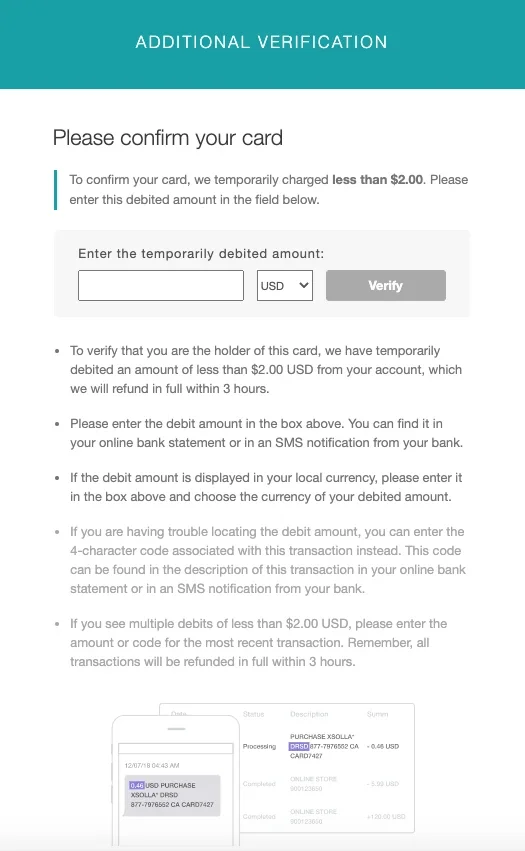
An amount entered in the wrong currency never passes verification. If your bank shows a different currency from the store, contact Xsolla for help rather than guessing a converted amount. If the authorized currency is absent from the dropdown, contact Xsolla as well.
This additional check can be required for your first payment, depending on your bank, card issuer, and Xsolla. Visa, Mastercard, AMEX, and JCB users may be redirected to their card issuer's secure authentication page, also called 3D Secure. Follow the prompt shown in that payment flow. For a separate problem receiving an AION 2 code, go to the verification code section of the loading and login page.
What Authorization Amount Do You Enter for AION 2 Error Code 1000?
Enter the authorization amount associated with the verification request, using your card issuer's authorization details to find it. Don't spend an attempt on a guess.
Look in your card issuer's app, online banking, SMS notifications, or email. If none of those lets you see the authorization amount, contact your bank. Getting the actual amount matters because the payment provider limits how many incorrect entries you can submit.
| Verification condition | What happens | What you should do |
|---|---|---|
| Correct code or amount, with successful verification | The pending verification authorization is canceled and refunded immediately | Allow for your bank's processing time before the change appears in your account |
| Incorrect amount entered on all 3 attempts | The payment provider's fraud detection system automatically cancels the payment | Stop guessing amounts and resolve the verification problem |
| Verification remains unfinished for 3 hours | The verification amount expires | Start a new payment to receive a new verification amount |
| A pending authorization is not used for verification | It is automatically canceled after 3 hours | Allow for the bank's cancellation or refund display time |
You have 3 attempts in total, and the verification amount is valid for only 3 hours. After that window, start a new payment instead of entering the expired amount again.
A canceled authorization and a visible refund are not always simultaneous in your banking app. The time it takes for a cancellation or refund to appear depends on your bank's policies.
Why Does an AION 2 Payment Still Fail After Verification?
If you entered the amount and the transaction was declined by the fraud detection system, contact Xsolla Customer Support. Repeating the same entry does not address that decline. Give support the payment context so they can investigate the transaction.
Also check the card type you are using. Debit cards can be used when they have sufficient funds, while gift cards and prepaid cards are unsupported for this verification process. A gift card balance does not make that card eligible for this flow.
Some players on the Taiwan server have had a different payment experience: one player reported paying successfully after linking a bank account to PayPal. Another player suggested MyCard Conversion Points for a regional payment problem. Neither applies to the Global store's Xsolla checkout.
If error code 1000 continues after those checks, contact AION 2 Customer Support and include:
- The error code you received.
- Your country or region.
- The payment method you used.
- The approximate date and time of the attempted purchase.
Once verification succeeds, the verification authorization is canceled and you can continue the purchase process. One player also reported needing to press the completion button inside the game shop UI, then seeing a notification that the crystals were in shop storage. If payment has completed but delivery seems stuck, check that in-game completion step. If your next session gets stuck during loading, continue with AION 2 stuck on loading screen. For another error message, go to AION 2 errors and fixes.